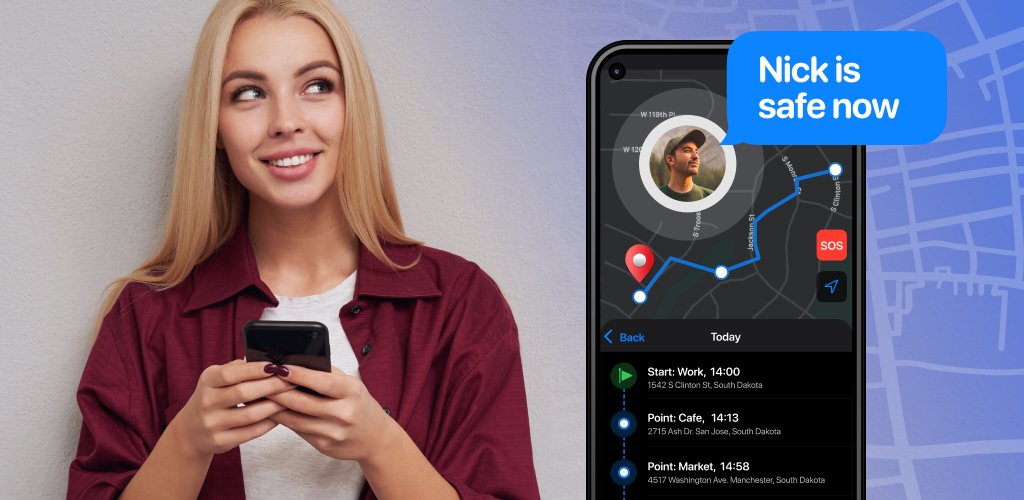
The first week after setting up family geofencing is usually a strange one. Your phone buzzes when your son leaves home. It buzzes again when he reaches school. Then it buzzes because he walked to the store at lunch, and the store is just outside the school boundary. Then it buzzes because the school boundary is too small and his phone briefly appeared to leave it while he sat in a classroom.
By Friday, some parents have muted the app. Others have done the opposite and started treating every ping like a fire alarm. Neither is what geofencing is for.
A geofence is a virtual boundary around a place. When a phone enters or leaves that area, the app can send an alert. It is a simple idea, and a useful one. But it only works well when you understand how it behaves and decide ahead of time what each alert actually means.
What geofencing is good at
Place alerts shine in a few common family situations:
- Knowing a child arrived at school or a club without needing a text
- Getting a heads-up when a teen leaves for home, so you can time dinner or a pickup
- Confirming an older relative reached a regular appointment
- Noticing when a phone has been left somewhere familiar, like a grandparent’s house
What all of these have in common is that they replace a small, routine question. “Did you get there?” becomes something you do not need to ask every day. That is the real value. Fewer check-in calls, fewer interruptions, less nagging.
How the alerts actually behave
Most of the stress around place alerts comes from expecting them to be instant and perfect. They are not, and the people who build Android say so plainly.
According to Android’s developer documentation on geofencing, alert latency is usually under two minutes, and shorter when the device is moving. When Android’s background location limits are in effect, the average is about two to three minutes. If the phone has been sitting still for a long time, the delay can stretch to as much as six minutes. The documentation also notes that the geofence service does not check location continuously, so some delay should always be expected.
There are other reasons an alert might arrive late or not at all:
- The boundary is too small for the available location accuracy
- Wi-Fi is turned off on the phone, which can sharply reduce accuracy
- There is poor cellular data or internet coverage inside the area
- The phone was restarted, and the app has not yet set its boundaries up again
None of these mean something bad has happened. They are just how the technology works. Once you know this, a late alert stops feeling like a warning sign.
Set boundaries the right size
The most common setup mistake is drawing boundaries that are far too tight. A small circle drawn neatly around a school building looks right on the map, but phone location can drift by tens of meters indoors. The result is false “left school” alerts while a child is sitting at their desk.
Android’s guidance recommends a minimum radius of about 100 to 150 meters for best results. It explains that Wi-Fi location accuracy is usually between 20 and 50 meters, so a larger circle gives the phone room to wobble without crossing the line.
In practice, that means:
- Draw the school boundary to include the grounds, the parking lot, and the nearest pickup spot
- Draw the home boundary to cover the whole street section, not just your front door
- For sports fields or parks, cover the full area plus a margin
Bigger circles mean fewer false alarms. That is a trade worth making.
Use fewer places, not more
It is tempting to set up a boundary for every location your child visits. The home, the school, two friends’ houses, the gym, the tutor, the bus stop, the shopping center. Do this and you will get a steady stream of alerts that tell you almost nothing.
Choose two or three places that really matter. For most families, that is home and school, plus one regular activity. If something changes, like a new job or a new route, you can add a place for that period and remove it later.
Some apps let you choose arrival alerts, departure alerts, or both for each place. Google’s Family Link, for example, lets parents turn “Arrives” and “Leaves” alerts on or off for each saved place, and notes that these alerts need location accuracy to be switched on. Often you only need one direction. Knowing your child arrived at school is useful. Knowing every time they leave the house may not be.
Consider “stayed” alerts instead of “entered”
One of the smarter tools in geofencing is called a dwell or “stay” trigger. Instead of alerting the moment a phone crosses a line, it only alerts after the phone has stayed inside the area for a set amount of time.
Android’s documentation specifically suggests this approach as a way to cut down on what it calls “alert spam.” A phone passing near the school on the bus will not trigger it. A phone that has been at school for ten minutes will.
Not every family app offers this option, but if yours does, it can turn a noisy setup into a calm one.
Decide in advance what each alert means
Before you turn anything on, agree on what each alert is for and what you will do about it. This is where geofencing goes from a gadget to a plan.
A simple way to frame it:
- Expected alert arrives: No action. That is the system working.
- Expected alert is late by a few minutes: No action. Delays are normal.
- Expected alert is late by a meaningful amount, say 20 to 30 minutes: Send a friendly message or call.
- Still no contact after that: Contact the destination, such as the school office or the club.
- Still unresolved: Follow your family’s usual emergency steps.
Writing this down protects you from your own adrenaline. It also helps your child, who knows exactly what will happen and why.
If you want a fuller walkthrough of how location updates and place alerts fit together, this practical guide to GPS tracking and geofencing explains the setup and settings side clearly.
Remember what an alert does not prove
A geofence alert tells you a phone appears to have crossed a line. That is all.
It does not prove a person was in class. It does not confirm who was carrying the device. It does not tell you why someone left an area or whether they are safe. A phone can be in a locker while its owner is on a field trip. It can be in a friend’s bag. It can lose signal in a basement gym.
When you keep this in mind, you react to alerts with questions rather than conclusions. That alone keeps most alerts from becoming emergencies.
Talk with your child about the alerts
Place alerts work much better when the person being located knows exactly how they work. Show your child which places you have set up and which alerts you get. Explain that you will not call every time an alert is late, and that a late alert is normal.
Ask them what feels reasonable. Many teens are fine with an arrival alert at school but dislike the idea of a parent being notified every time they leave home. Their view matters, and a setup they agree with is one they are less likely to switch off.
This also keeps things honest. Family geofencing should always be visible and agreed. Children should know that place alerts exist, who receives them, and how to raise concerns.
Plan for the days that are different
School trips, sports tournaments, snow days, and sick days all break the normal pattern. On those days, your usual alerts will either fire at odd times or not fire at all. A child on a museum trip will “leave school” at 9:15 in the morning, and there is nothing wrong.
A good habit is to glance at the family calendar the night before. If tomorrow is unusual, either pause the alerts for that day or simply remind yourself not to read anything into them. Some families add a quick note to a shared calendar, like “away game, back 7 pm,” which makes the whole day easier to read.
The same goes for school breaks. There is little point in getting school alerts during a summer break. Turn them off and switch them back on at the start of the semester.
Watch your own reaction
Technology can amplify worry as easily as it soothes it. Many parents find that place alerts calm them on most days but jolt them on the odd day an alert is late. Both reactions can be true for the same person.
If you notice yourself refreshing the app, or feeling a jolt every time your phone buzzes, it might be time to turn some alerts off. The goal is to feel more at ease, not more on edge.
What a good week looks like
After a few weeks of tuning, a well-set-up family geofence becomes almost invisible. Your phone buzzes once in the morning when your son reaches school, and maybe once in the afternoon when he gets home. Some days an alert is a few minutes late, and you barely notice. On the odd day it does not arrive, you send one friendly message, get a thumbs-up back, and carry on.
That is the goal. Not a stream of data, but two or three quiet confirmations that the day is going the way everyone expected. If your setup feels louder than that, go back to the basics: fewer places, bigger boundaries, one alert direction, and a clear agreement about what a late alert means. Family geofencing at its best is quiet, and that is exactly how it should feel.