Content rarely lives in only one format. The same photograph must often serve as a square Instagram post, a vertical Story, a wide website banner, and a thumbnail. Simply cropping discards pixels and can ruin composition. Generative expansion offers a better path. Learning how to expand photos for different aspect ratios lets you grow the canvas intelligently so the final crop retains the full original content plus newly generated context.
The Advantage of Generative Expansion Over Cropping
Traditional cropping forces a hard choice: keep the subject and lose background, or keep the background and cut the subject. Outpainting removes that dilemma by inventing plausible new areas around the existing image. When combined with intelligent resizing, the process becomes even more powerful.
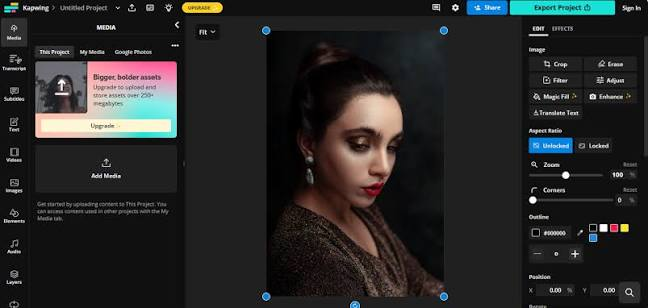
CapCut’s crop-aware resizing guide explains how the system detects important subjects and protects them while the frame dimensions change. Together, expansion and crop-aware resizing give creators precise control over both content and composition across platforms.
Step-by-Step Approach for Multi-Format Delivery
- Start with the highest-resolution original.
- Decide which target aspect ratios are required.
- Use AI outpainting to expand the canvas so each target ratio can be achieved without aggressive cropping.
- Apply crop-aware resizing to each final dimension, allowing the system to keep the subject properly framed.
- Review every version at full size.
- Export the set of images optimized for their respective platforms.
This method produces a coherent family of assets from a single source photograph.
Tips for Convincing Expansions
- Expand in stages when large changes are needed.
- Maintain consistent lighting and perspective cues in the original image.
- Inspect the newly generated regions for texture repetition or lighting breaks.
- Use additional prompt guidance when the tool supports it to influence the style of the extension.
Protecting Composition During Resize
Even after expansion, the final crop still matters. CapCut’s subject-aware tools help ensure that faces, products, or other key elements remain well positioned and fully visible. Manual override remains available when the automatic detection does not match your creative intent.
Common Scenarios and Solutions
Vertical phone photo → horizontal banner: Expand the sides, then apply crop-aware resize.
Square product shot → vertical Story: Expand top and bottom, protect the product during final crop.
Wide landscape → multiple social formats: Expand as needed, then generate several crop-aware versions.
Quality and Consistency Across Versions
When producing multiple aspect ratios from one image, maintain consistent color grading and enhancement settings across the set. This ensures the family of images feels related even though the frames differ. CapCut’s ability to save and reuse adjustment presets supports this consistency.
Business Impact
Teams that master expansion and crop-aware resizing reduce the need for additional photoshoots or extensive manual compositing. Campaign assets can be adapted rapidly for new channels. The time savings compound across a full content calendar.
FAQ
Q: How much can I expand an image before quality drops?
A: Moderate expansions usually look natural. Extreme expansions require more careful review and may need manual cleanup.
Q: Does crop-aware resizing work on complex scenes?
A: It prioritizes detected subjects. Highly complex images with many competing elements may still benefit from manual framing decisions.
Q: Can I expand only one side of the image?
A: Yes. Most outpainting tools allow directional control.
Q: Will the AI invent new objects in the expanded areas?
A: It can, depending on the context and any prompt guidance provided. Review the results for unwanted inventions.
Q: Are expanded images suitable for print?
A: For many uses yes, provided the final resolution is adequate and artifacts have been checked.