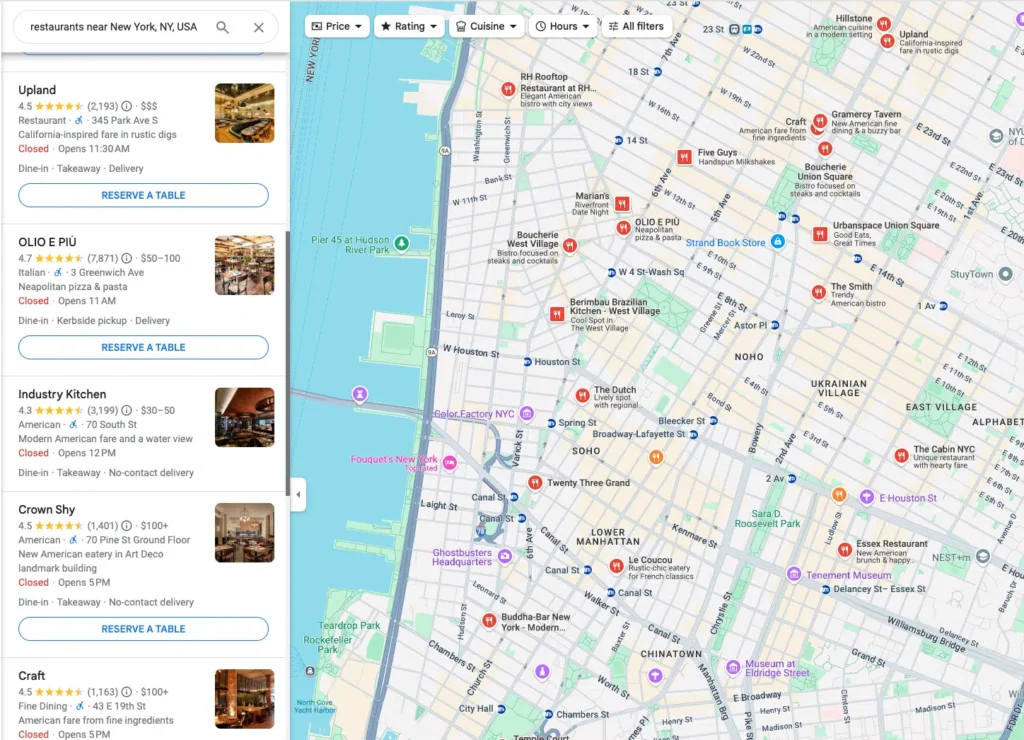
Sales and marketing teams have long known that Google Maps is one of the richest sources of local business data available, but manually copying listings one by one simply doesn’t scale. That gap is exactly where Outscraper fits in, automating the extraction process so teams can focus on outreach and strategy instead of data entry. This article walks through how the tool works, what kind of data it returns, and how different teams put it to use in their day-to-day workflows.
How Pricing Works
Pricing for this kind of tool is typically usage-based, meaning costs scale with the volume of data extracted rather than a flat monthly fee regardless of use. This structure tends to work well for teams with variable needs, since a small test run costs very little, while a larger campaign requiring thousands of records simply costs proportionally more. Getting good value usually comes down to being specific about what data is actually needed before running large searches. Extracting every possible field for every business in a huge metro area is rarely necessary; narrowing the search by category and sub-region first often produces a more useful, more affordable dataset.
Choosing the Right Tool
Choosing the right tool for pulling business data ultimately comes down to how well it balances speed, accuracy, and ease of use. A tool that’s fast but produces messy or outdated data isn’t actually saving time once someone has to clean it up manually afterward. For teams that regularly need fresh local business data, whether for sales, marketing, research, or partnership development, having a reliable extraction process in place removes one of the most tedious parts of the job and lets the team focus on what to do with the information once it’s in hand.
Importing Data into Your Workflow
Because exports come in standard CSV or Excel formats, importing them into a CRM, email platform, or spreadsheet-based workflow is usually straightforward. Most CRMs accept bulk CSV imports with field mapping, so a business name column maps to a company field, a phone number column maps to a contact field, and so on. Teams running cold outreach campaigns often pair this kind of exported data with an email finder or verification step before uploading contacts into their outreach platform, ensuring that the list going into a campaign is both accurate and properly formatted for whatever sequencing tool they’re using.
Who Uses This Data
Local SEO agencies use this kind of data to identify prospects who could benefit from better online visibility, sales teams use it to build cold outreach lists segmented by city and category, and market researchers use it to map competitive density across regions. Recruiters have even started using similar searches to identify local businesses that might be hiring, while event planners use it to compile vendor and venue shortlists. Franchise development teams often rely on this type of data to evaluate potential markets, comparing the number and density of similar businesses across different cities before deciding where to expand. Nonprofits, similarly, use it to identify local businesses that might be open to sponsorship or partnership conversations.
Running Your First Search
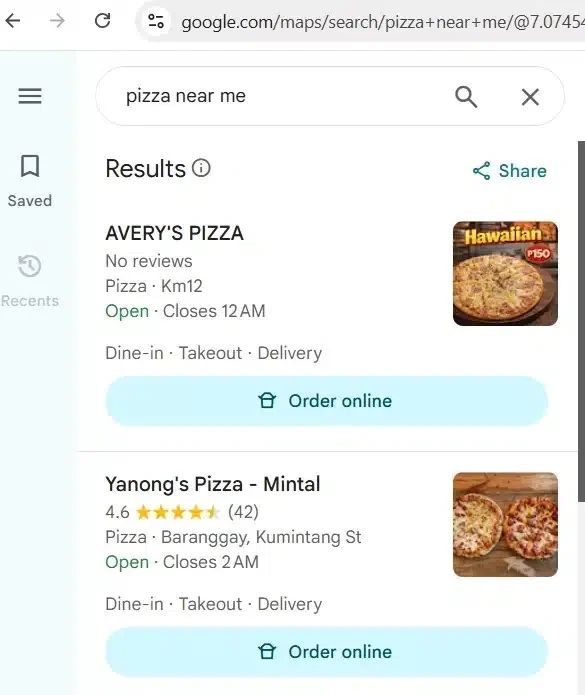
Getting started typically involves entering a search term, such as a business category combined with a city or zip code, and letting the tool pull every matching listing within that scope. Once the search runs, results can be filtered, sorted, and exported directly to CSV or Excel, making it easy to hand the file off to a sales team or import it into another platform. New users often start with a small test search to get a feel for the output format before running larger extractions across multiple cities or categories. This approach helps confirm that the data fields returned match what’s actually needed for the project, whether that’s just names and phone numbers or a fuller dataset including websites and review counts. As local business data becomes more central to sales, marketing, and research workflows, having an efficient way to extract it directly from Google Maps is quickly becoming less of a nice-to-have and more of a standard part of the toolkit.